There is something very satisfying about watching someone be really good at something (Mike Trapp, 2020). That’s exactly what I was thinking every time I’d look over the shoulder of one of my former colleagues and see them spawn all sorts of terminals, interpreters, scripts and more without ever so much as touching the mouse.
That’s when I got an idea of what could be done with some proper muscle memory and proper configuration of your workstation, and I was inspired to try something similar. After all, optimizing in games is something I always do, and terminals are kinda like games… right?
Anyway. In this series of posts I’ll explain how I set up my development environment and tools so that I can do my job as a developer more efficiently. In the first post I’ll cover how I configured VSCode to use Vim-style keybindings, while in later posts I’ll cover my shell setup with zsh and tmux.
Before starting, I thought I’d write a post to explain where it all started, and how you might end up in the same predicament I did. You can skip to the next post on Vim if you’re not interested.
How it all started
Using vim keybinds may save you some time that you then will waste on vim configurations that should “save time”.
— Jérôme (paraphrased)
Unfortunately, I forgot the exact words that were spoken that day, but I think I captured the gist of what he was warning me about.
On the other hand, there’s my borderline obsessive interest in optimizing everything I do for fun and learning how to do it at the same time. Also, this relevant XKCD (because of course there would be one): 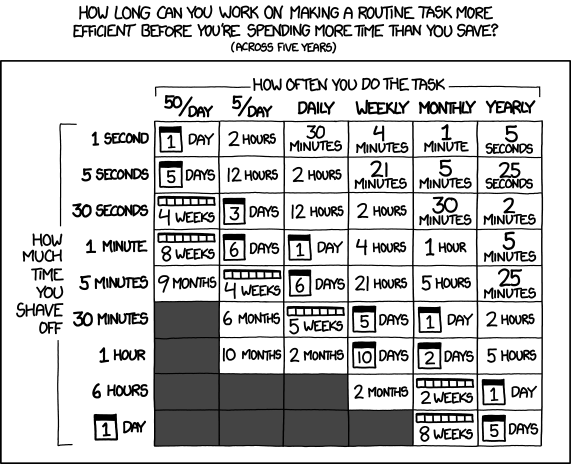
As I was saying, it’s Jérôme’s fault if I’m doing all this, and for that I say “thanks Jérôme, I’m having so much fun now”. All that I needed was a good excuse to install the VSCode Vim extension to finally have to deal with the keybinds, the various modes, and everything that they entail.
They opened a brand new world: I would no longer be limited to Ctrl+arrow keys to delete one word at a time. I now had a whole keyboard’s worth of keybindings to yank, paste, select, delete, move, and everything that comes with it.
“This is pretty cool,” I thought, as I was now free to edit, search, replace, and jump from one place to another with a well-executed sequence of keystrokes.
Shame I’d need to learn which keystrokes to press to do what. That took some time. I’d recommend bookmarking a good Vim cheat sheet, and possibly asking an LLM how to do certain operations – LeChat was surprisingly helpful with that.
So now I had a way to move around my IDE that reduced my reliance on the mouse. Could I do more than just this? Yes! All it takes is a good shell configuration and quite a bit of free time.
Yes, if it wasn’t clear: setting up everything was not a quick process. It was, however, absolutely worth the effort – if only because now I almost feel like a real developer. That’s why I decided to write these posts: my hope is that they’ll inspire someone else to take the plunge, or maybe help someone set up their workstation in a way that suits them best.